
Can I use free Photoshop mockups with Bulk Mockup Photoshop Plugin?
Yes — you can use free mockup templates with Bulk Mockup Photoshop Plugin if the mockup is a Photoshop PSD file that contains an editable Smart Object layer. The plugin works with Photoshop mockup templates built around Smart Objects, not with Canva, Photopea, or Adobe Photoshop Express.
Before you start, make sure you are using the full desktop version of Adobe Photoshop CC 2022 or later.
How to check if a free mockup is compatible
Download and open the mockup file in Adobe Photoshop.
Check that the file is a PSD mockup template.
Look in the Layers panel for a layer with the Smart Object icon.
Open that Smart Object and confirm you can replace the design artwork inside it.
Save the file as a PSD template so you can use it with Bulk Mockup Photoshop Plugin.
If the mockup has a working Smart Object layer, it can usually be processed by Bulk Mockup Photoshop Plugin.
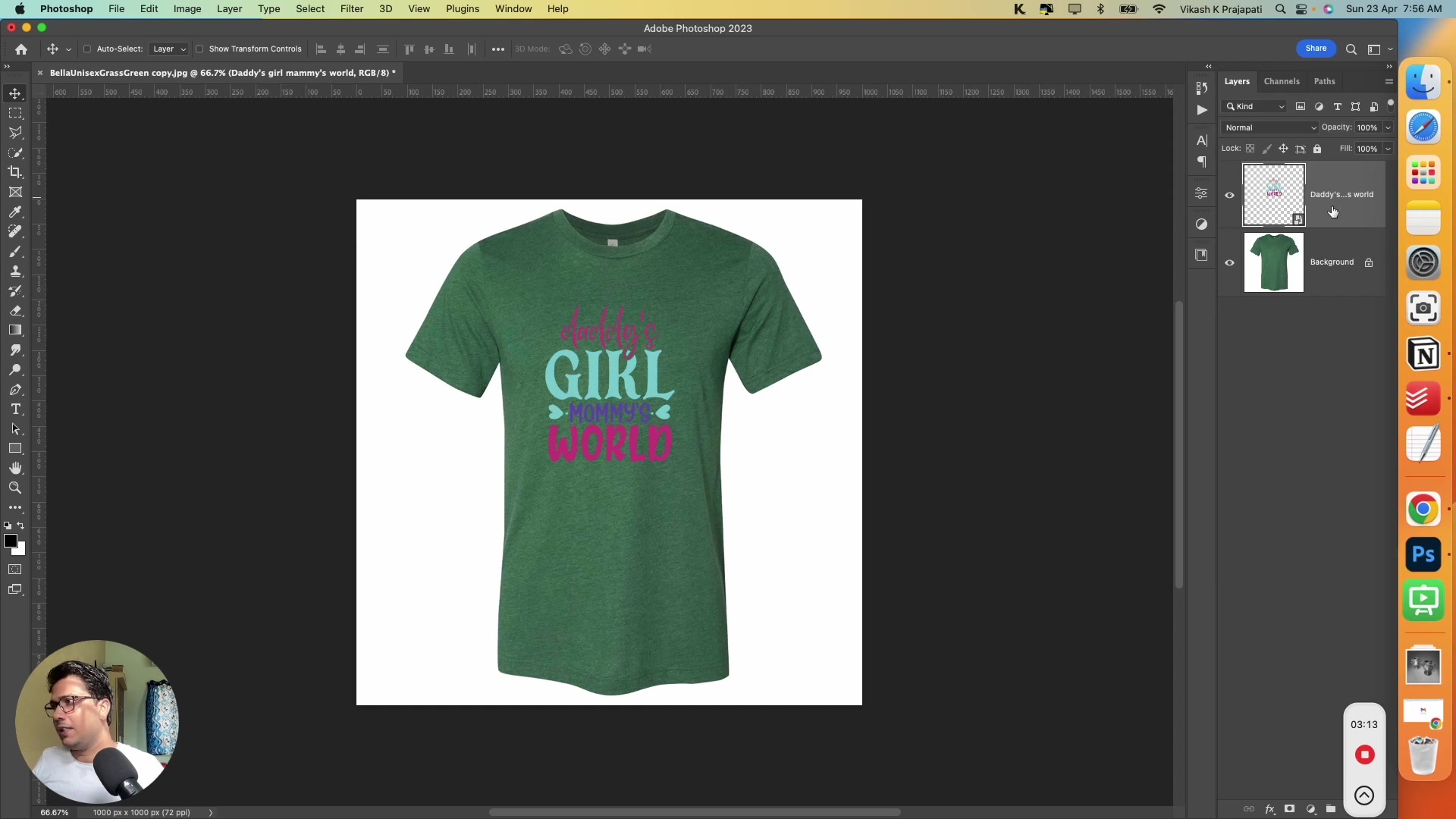
How to use a free mockup template in Bulk Mockup Photoshop Plugin
Prepare your free mockup template as a PSD with a Smart Object layer.
Rename the design Smart Object layer to @design if you want the plugin to target that specific layer consistently.
Open Photoshop and go to Plugins > Bulk Mockup.
Set your PSD Templates Folder to the folder that contains your mockup PSD files.
Set your Design File Folder to the folder that contains the artwork you want to place into the mockups.
Set your Export Folder to choose where the generated mockups should be saved.
Click Start Generating to process the templates in bulk.
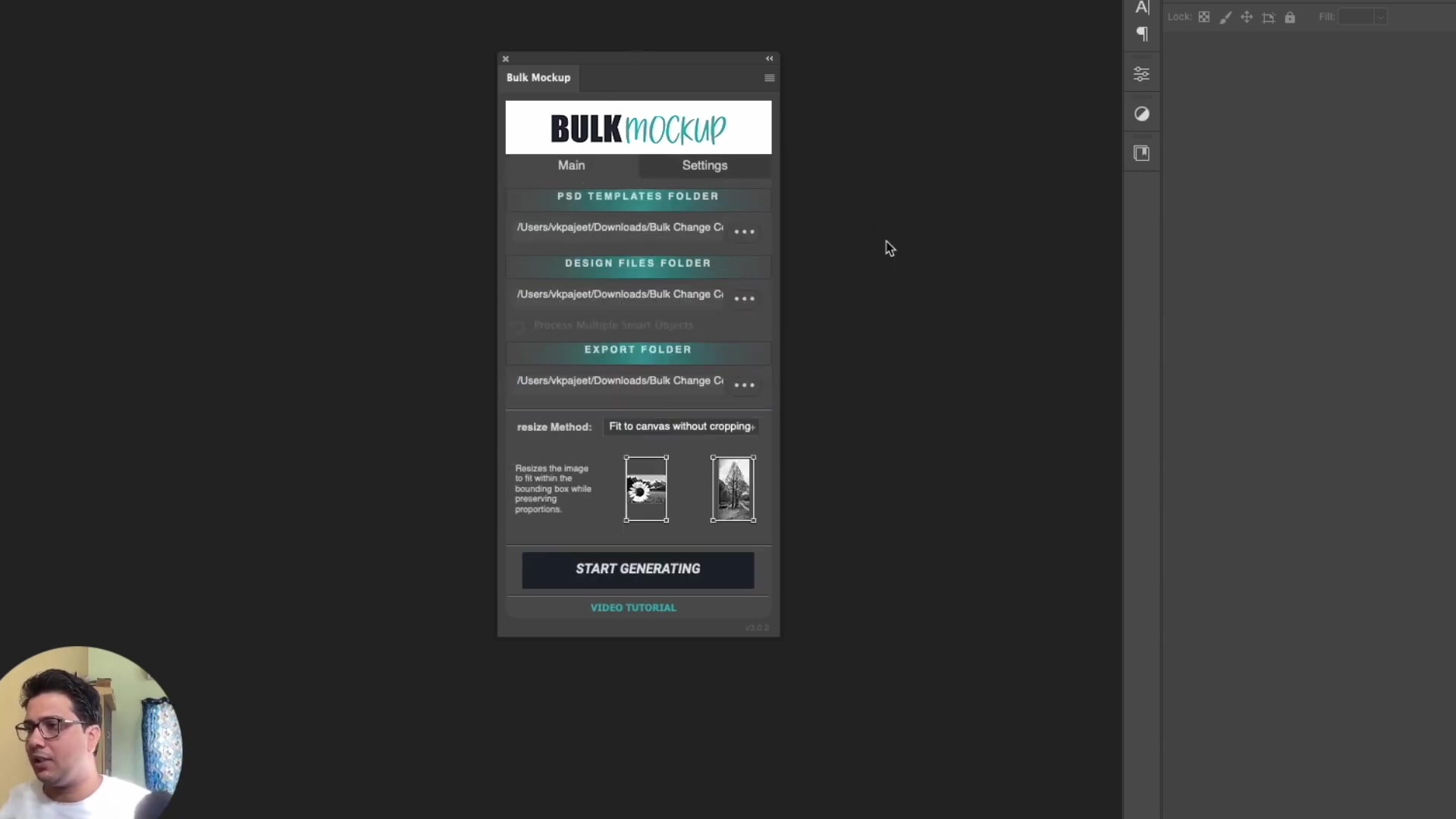
What kinds of free mockups work best
Bulk Mockup Photoshop Plugin is built for Photoshop mockup templates that use Smart Objects. On the Bulk Mockup website, the team says the plugin supports almost all print-on-demand mockup templates as long as they contain a Smart Object layer.
This includes many common template types such as T-shirts, hoodies, framed posters, mugs, phone cases, tote bags, bottles, blankets, towels, and similar mockup categories.
What will not work
Mockups made for Canva
Mockups made for Photopea
Adobe Photoshop Express workflows
Files without an editable Smart Object layer
Templates that are not usable in Adobe Photoshop desktop
Bulk Mockup Photoshop Plugin works only with Adobe Photoshop CC 2022 or later. If you are using older Photoshop versions, contact support about the older plugin version for Photoshop CC 2017-2021.
If your free mockup is not working
If a free mockup template fails, the most common reason is that the file does not include a usable Smart Object layer for the design area. Open the PSD, inspect the Layers panel, and test the Smart Object manually before running the plugin.
If you want a full walkthrough for setting up your first PSD templates, see Creating First Mockup With Photoshop Plugin Bulk Mockup (Complete Beginner Guide).
Watch Similar videos:
Use Cases:
Use free apparel mockups to generate product listing images faster.
Reuse free PSD poster or wall art templates across multiple design files.
Batch-create mockups for Etsy or print-on-demand product catalogs.
Need More Help?
If you have questions about export folder settings or encounter any issues, contact the Bulk Mockup support team at [email protected].